Sales Tax
Navigation:
Side Panel → Reports → Sales Tax
The Sales Tax Report provides a consolidated view of taxable sales, non-taxable sales, and total tax collected within a selected date range. It allows you to analyze tax data at three levels:
Invoice
Items
Tax Class
This report is commonly used by shop owners, managers, and accountants to verify tax liability, reconcile collected taxes, and prepare filings.
Date & Filter Controls
At the top of the report, you can configure:
Time Filter (All Time, Today, Last Week, Last Month)
Custom Date Range (Start Date – End Date)
Invoice Type Filter (All, Repair Order, Quick Checkout) – Available in the Invoice tab
Customer Filter (Invoice tab only)
All data updates are based on the selected filters.
Invoice Tab
The Invoice tab (top right corner) provides tax reporting at the invoice level.
Columns Displayed:
Invoice Id
Invoice Type
Date
Taxable Sales
Non-Taxable Sales
Total Tax Collected
Select Columns
Click Select Columns to customize the visible columns.
Mandatory Columns
Invoice Id
Invoice Type
Date
Taxable Sales
Total Tax Collected
Optional Columns (Can Be Added)
RO# / QCO
Customer Name
CC
Total Sales
Total Fee
Non-Taxable Sales
Total Tax Parts
Total Tax Labor
Fee Tax
Exporting the Invoice Sales Tax Report
Click the Export icon next to Select Columns to download the report.
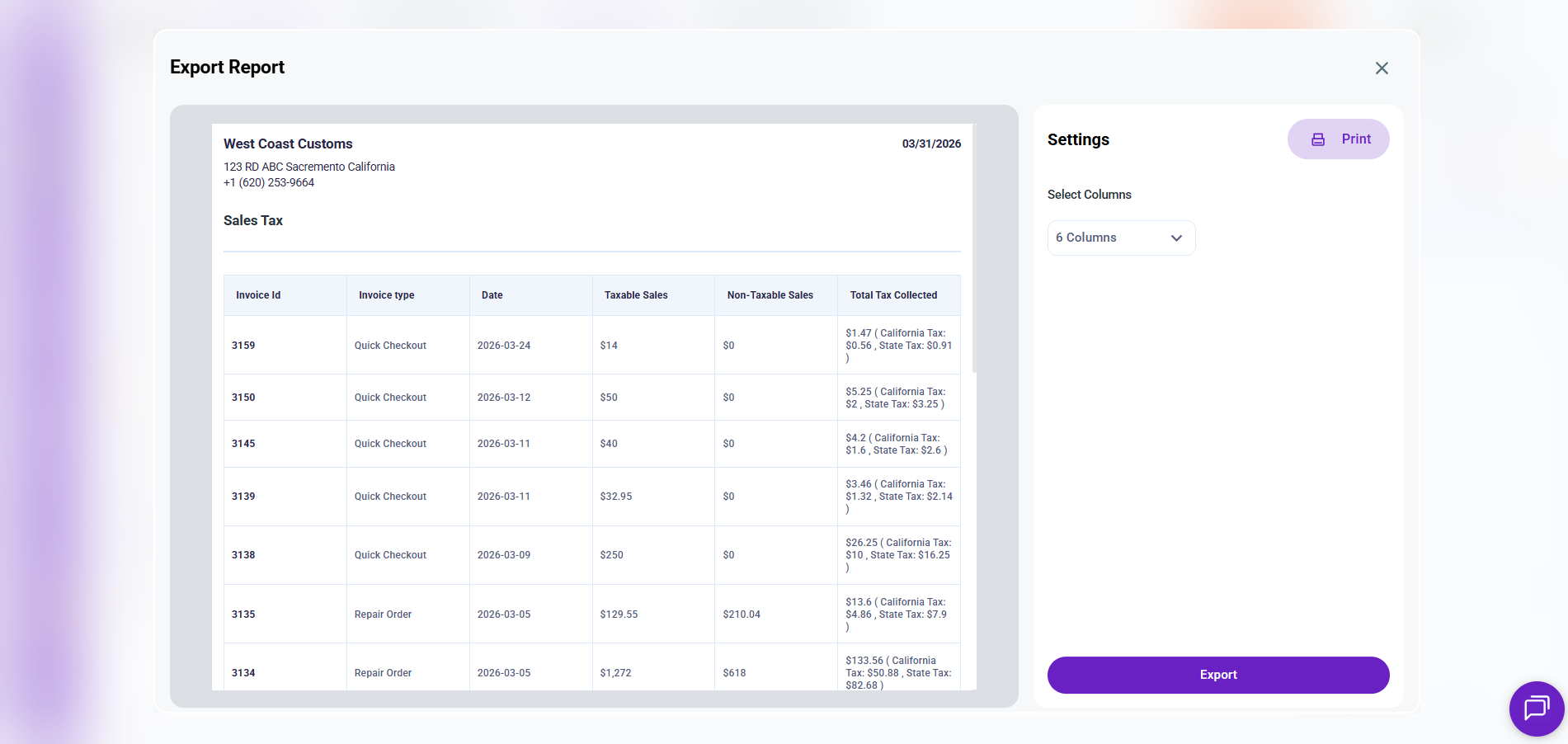
Mandatory Export Columns (Cannot Be Deselected)
Invoice Id
Invoice Type
Date
Taxable Sales
Optional Export Columns (Can Be Added)
RO# / QCO
Customer Name
CC
Total Sales
Total Fee
Non-Taxable Sales
Total Tax Parts
Total Tax Labor
Fee Tax
Total Tax Collected
After selecting columns, click Export to download the report.
Sharing the Invoice Sales Tax Report
Click Share to send the report via email.
The Share panel includes:
Select Columns (same structure as Export)
Email field (enter one or multiple email addresses)
Click Share to send the report directly.
Items Tab
Click Items in the top-right tab selector to switch views.
At the top of the report, you can configure:
Time Filter (All Time, Today, Last Week, Last Month)
Custom Date Range (Start Date – End Date)
The Items tab groups tax data by:
Parts & Supplies
Labor
Columns Displayed:
Items
Taxable
Non-Taxable
Total Tax Collected
A totals row appears at the bottom displaying:
Total Taxable
Total Non-Taxable
Total Tax Collected
Exporting the Items Sales Tax Report
Click Export in the top right corner to download the Items report.
Columns:
Items
Taxable
Non-Taxable
Total Tax Collected
All four columns are required and cannot be removed.
Click Export to download.
Sharing the Items Sales Tax Report
Click Share next to the Export button to email the report.
The Share panel includes:
Select Columns (same four mandatory columns)
Enter email address(es)
Once done, click Share to send the report directly.
Tax Class Tab
Click Tax Class to view tax data grouped by configured tax classes.
At the top of the report, you can configure:
Time Filter (All Time, Today, Last Week, Last Month)
Custom Date Range (Start Date – End Date)
Columns Displayed:
Tax Class Name
Taxable Amount
Total Tax Collected
This view helps you analyze tax liability for each configured tax class.
Exporting the Tax Class Sales Tax Report
Click Export in the top right corner to download the report.
Columns:
Tax Class Name
Taxable Amount
Total Tax Collected
All three columns are required and cannot be removed.
Click Export to download.
Sharing the Tax Class Sales Tax Report
Click Share next to the Export button to email the report.
The Share panel includes:
Select Columns (same three mandatory columns)
Email field
Enter one or multiple email addresses and click Share.
The Invoice tab shows tax data for each invoice. The Items tab groups taxes by category, such as Parts & Supplies and Labor. The Tax Class tab organizes totals based on configured tax classes, making it useful for reviewing tax liability by tax type.
Certain columns are mandatory because they contain essential tax information required for accurate reporting. These fields ensure exported or shared reports remain complete and compliant.
Select the appropriate date range, then review totals under the Tax Class tab to verify collected amounts. Use the Invoice tab for detailed verification if needed, and export the report for accounting or filing records.
Yes. The report reflects live data based on the selected date range and applied filters. Any updates to invoices or tax settings will automatically appear in the report.
Yes. You can export the report from any tab (Invoice, Items, or Tax Class) and share it with accountants or use it to prepare tax filings and reconciliation records.
Related Articles
Sales & Profit Summary
Navigation: Side Panel → Reports → Sales & Profit Summary The Sales & Profit Summary report provides a detailed breakdown of revenue, tax, discounts, costs, and profit at the invoice level. It allows you to evaluate individual repair orders and ...Day End Report
Navigation: Side Panel → Reports → Day End Report The Day End Report provides a consolidated financial summary of your shop’s daily activity. It combines repair order activity, invoice status, revenue, cost, and profit into a single view so you can ...Mechanics Posted Hours
Navigation: Side Panel → Reports → Mechanics Posted Hours The Mechanics Posted Hours report provides a performance overview of each mechanic by comparing billed time with clocked time. It helps shop owners and managers evaluate technician efficiency, ...